16 June 2013

progeCAD 13.0.14.11 Update Released on CADDIT


CADDIT has released another important update for progeCAD 2013 Professional on caddit.net. progeCAD is CAD design software for building and landscape design, civil and structural drafting. Features include PDF printing, DWF, STL file for 3D printing of drawings & full 3D modeling and 3D rendering. progeCAD will edit complex AutoCAD files with xrefs, blocks, hatching, mtext and more at very low cost.

progeCAD 2013.0.14.11 update fixes and enhancements include:
 
  • Added PUBLISH command
  • Fixed several crashes
  • Fixed paper size order in print dialog
  • Restored name of block in QSELECT list
  • Fixed localization of some sentence in Recover manager dialog
  • LISP: Added vl-cmdf function to VLISP project
  • LISP: Added layoutlist lisp function
  • Inserted error message for conversion PDF to JPG
  • Upgraded PDF and JPG driver from version 4.5.3.3 to version 4.5.3.5
  • Fixed missing uninstall part for pdf printer
  • Fixed UCS toolbar, button ORIGIN.
  • PDF2CAD: set tickness to 0 for all entities converted
  • PDF2CAD: removed request to open files
  • PDF2CAD: fixed some messages
  • Fixed creation of PC3 with specific option in HP Djet 500 plotter
  • Fixed esnap NEAR to circle with little radius (0.1)
  • Fixed OFFSET error of 2Dpolyline
  • Fixed import of PGP files with tabs
  • Fixed icad.fmp file to remove substitution of fonts
  • Fixed crash opening drawing with password and scrollbars activated
  • Global linetpe scale - Property dialog not working
  • Fixed crash using Explorer->blocks
  • VBA: The method AddAttributeDef doesn't assign current layer to entity
  • VBA: fixed several VBA methods
  • VBA: Block.Delete method is not supported
  • Restored default settings: User can restore only Menu or Toolbar
  • Removed message prompt for searching missing references
  • Added SNAPGRIDLEGACY variable to constrain cursor movement to GRID also when no command or selection active (default is off)
  • Added CTRL+ENTER to press OK button to close EATTEDIT dialog
  • Improved selection of attributes in EATTEDIT dialog directly on double clicked
  • Fixed crash pressing OK in print dialog
  • Fixed crash using property palette
  • Improved ability to cancel search of closed boundary in hatch dialog
  • Improved closed area recognition fixing various deadlocks and improved algorithm
  • Changed CH alias to ENTPROP command
  • Fixed filter names after creation in LAYERS dialog
  • Fixed paths tab in options dialog
  • VBA: Fixed property closed on object LWPolyline.
  • Added progressbar in hatch area compute and increased ESC management (also analyzing sub paths)
  • Added Autocad 2013-2014 clipboard format to allow PASTECLIP in autocad recent versions
  • Added check to avoid crash on COPYCLIP+PASTECLIP in another application
  • Fixed LAYFRZ command with dimension
  • Fixed crash on ESC on print preview
  • Fixed EXTRUDE command with large coordinate
  • Fixed direction of extrusion
  • Fixed search order for SHX files, now pcad first searches in drawing folder then in other search paths
  • Changed plot header and footer separator char from "," to "|"
  • Fixed API to set overridden plotting configurations
  • Fixed crash when dimassoc = 0 dimlinear doesn't work.
  • Fixed DWFOUT command, now uses dialog to choose filename and uses parameters in dialog
  • Fixed VIEWPOINT command removing ESNAP when user type coordinates on keyboard
  • Fixed display of RECOVER message loading a corrupted file with double click
  • Removed plot length limit from paper size
  • Fixed attribute edit during INSERT command
  • Fixed INSERT with NWUCS
  • Fixed margins for plotters with large paper size (A1 etc.) removed PRINTAUTOROTATE variable behavior

04 June 2013

3D CAD Sheetmetal using Excel in Geomagic Design

Geomagic Design 3D CAD (formerly Alibre Design) software from 3D Systems supports the use of Microsoft Excel files to drive design in all low-cost versions: Design Personal, Design Professional and Design Expert. Spreadsheet-driven parameters allow for company staff to specify design criteria without the use of any CAD software - only the final update need be applied using Geomagic. Microsoft Excel 2003, 2007 and 2010 are all supported in the software help documentation of Geomagic Design 2013. This article follows a simplified demonstration of setting up, linking to and executing Excel files for a sheet metal part.

To begin with, download Geomagic Design HERE (link). No special settings are required at this point during the installation. Note that Geomagic Design does not support integration with Open Office. By way of overview, our example team will generate example spreadsheets which we will use to update a 3D design, which will be saved and used to update a DXF file for CNC.
 
 
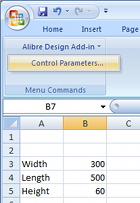
Every Geomagic Design installation includes an installation template which must be added to the Excel add-on list while running Excel once with administrator rights. Instructions as to how to do this with any supported version of Microsoft Office are available in the F1-help of Geomagic Design. Once properly installed, "Alibre Design Add-in" should be available from the Tools menu or Add-ins ribbon tab. Any numerical value cell may be selected to correspond to a Geomagic Design parameter, units specified and applied to a selected Geomagic Design file. For example we whip up something simple in Excel (shown right). Such a file can be created in Excel by anyone anywhere anytime (or it can be an imported CSV file etc)...

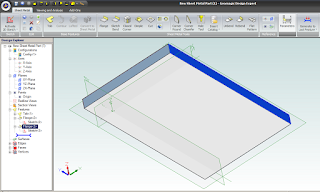
To update model parameters with the values listed in our spreadsheet, we need to start Geomagic Design and load the file in question. In our example we load the following basic Sheet Metal part, with overall parameters for "SM_length", "SM_width" and "SM_height":

 
Switching back over to our open spreadsheet, we select the Albre Design Add-in Control Parametrs (see above image of Excel). This opens a table in which cells are matched with parameter names:
 

To link spreadsheet values with model parameters, select an Active Session (model name currently open in Geomagic Design). All of the selected session's parameters will be listed by name. Now select the name of the desired model parameter from this list - and then the small "_" button down under Cell Reference and pick the workbook cell that you wish to link it to. Click the "Modify" button to finally change the parameter value to the one in the spreadsheet. Changes are shown immediately in Geomagic's active session model. Multiple changes can be made and applied at once by multi-selecting through the parameter list. If the spreadsheet is saved, the parameter links are saved with it.

To generate a DXF file of the final sheet metal design, a Geomagic drawing is used. Create a new Standard View. In the open Standard View Creation window, click the button "More Options". Check the option "Project as Flat Pattern" which will use the flattened version of the Sheet metal design for the projection view. Check that the projection scale is 1:1 and create the view. Once the flattened view is created, export the version of DXF which you require for CNC.

Geomagic Design is Australia's de facto low-cost 3D CAD alternative to SolidWorks and Autodesk Inventor. For more information about Geomagic Design or a free download, visit our website at http://www.caddit.net/cad-cam-software/geomagic.php

Google.