Sydney, Australia 26 September - CADDIT announces the immediate availability of the 2022.0.14 patch update for all progeCAD 2022 license types. This update is free for all up-to-date users of progeCAD Professional 2022 Single License (stand-alone), Portable Travel-USB and Network License types. It may be downloaded either through the progeCAD software update, or directly as a complete installation package from the CADDIT website. progeCAD is a general purpose AutoCAD-compatible 2D and 3D technical drawing software used by thousands of Australian businesses and government agencies.
This progeCAD update offers minor improvements in multiple functional areas, including Superhatch and Hatch island detection, Tables and Table Styles, ease of use and appearance issues. These include:
• Fixed crash selecting specific hatch
• Fixed zoom on entity in FIND command without "zoom after replace" option
• Margins set in Table Style are now loaded correctly in table creation menu
• Fixed EATTEDIT prompt messages
• Fixed open of drawing with bad constraints
• Fixed behavior of prompt boxes. Added new variable PROMPTBOXES to enable/disable prompt boxes. Right click menu is now regulated only by the variable SHORTCUTMENU
• Now creating a new table style copies the base one successfully
• Fixed Table Styles preview
• Added "Match Cell" and "Field" buttons to Table Cell context ribbon
• Fixed prompt menu when command is not active
• Added "Alignement" button to the Table toolbar for the Classic workspaces
• Fixed crash using table with block in cell
• Fixed freeze searching closed boundary in a drawing
• Fixed SUPERHATCH with circle island in area
• Fixed SUPERHATCH with rectangular "hole" in area
• Added double click to edit block in table cell
• Fixed crash on edit table cell with block. Using "Format Locking" option
• Added "Block" button to "Insert" panel of "Table Cell" contextual ribbon
• Added TBB and TINSERT aliases of TABLEINSERTBLK command
• Fixed ARC command from Lisp
• Fixed contextual menu on mouse button down
• Removed display of options list when DYNMODE < 0
• Changed ZOOM level on FIND command, Implemented FINDZOOMSCALE variable to set scale zoom level (default 5.0)
• Improved drawing templates dropdown menu in Start Page. Now it will display a vertical scrollbar if the list of the templates is too long
Question about this update for progeCAD 2022 can be submitted through the CADDIT website.
Showing posts with label tables. Show all posts
Showing posts with label tables. Show all posts
27 September 2022
progeCAD 22.0.14 Free Update Released


18 November 2014
AutoCAD Tables in progeCAD 2014 - Create and Edit
A new feature in progeCAD 2014 is comprehensive support for the AutoCAD data "table" entity set which was first introduced in AutoCAD 2005 version but improved in 2008. The data table is supported in both the full version of AutoCAD and AutoCAD LT, although the LT version does not support entity data extraction feature. It was also discussed for earlier versions of progeCAD, but had to wait for the milestone 2013 DRX-based release before it could be implemented. In a further step in AutoCAD compatibility, progeCAD 2014 can now both create new data tables and edit existing data tables from AutoCAD DWG files.
To create a new, empty data table in progeCAD, simply click either the Table icon in the Draw toolbar
 , OR select "Draw" -> "Table" form the progeCAD menu. The following familiar dialogue box will appear:

Simply specify the desired number or rows and columns, pick a size for these and set the cell styles. For now we will leave the Insert options as "Start from empty table". Then you can locate the new data table either by a single point, or cross-corner and allow the cell sizes to emerge as a calculated value. Once the table is inserted into your drawing, you can begin entering data, such as naming the headers or inserting values. This is done simply by double-clicking into one of the cells much like we would in Excel. This highlights the selected cell in red and opens up the cell's entry box:
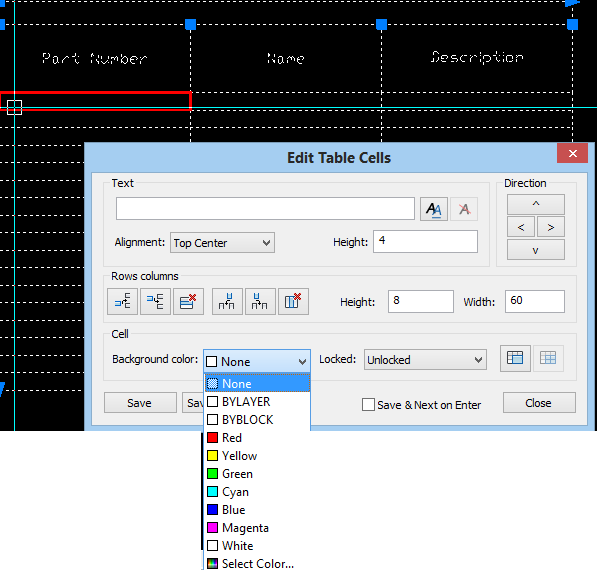 Note that from here we can easily control many aspects of the individual data cell, like background colour, text height and much more. Text itself can be entered directly here, or formatted in the MTEXT window which can be called up by clicking the "Double AA" icon to the right of the text field.
progeCAD tables also support entity data extraction to a new table, something only supported in the full version of AutoCAD and not in AutoCAD LT. To do this we select the "from object in the drawing" insert option instead. Afterwards we are prompted to select the entities from which we want to extract the data and a template as well, if desired.
progeCAD 2014 also supports an insert from CSV file option as well.
progeCAD is a popular AutoCAD alternative in Australia because of it's low cost, local support and large community of users. For more information on progeCAD 2014 or for a free, no-obligation trial version to test for yourself, visit the progeCAD Australia webpage or contact us at our Parramatta training office.
To create a new, empty data table in progeCAD, simply click either the Table icon in the Draw toolbar
Simply specify the desired number or rows and columns, pick a size for these and set the cell styles. For now we will leave the Insert options as "Start from empty table". Then you can locate the new data table either by a single point, or cross-corner and allow the cell sizes to emerge as a calculated value. Once the table is inserted into your drawing, you can begin entering data, such as naming the headers or inserting values. This is done simply by double-clicking into one of the cells much like we would in Excel. This highlights the selected cell in red and opens up the cell's entry box:
Note that from here we can easily control many aspects of the individual data cell, like background colour, text height and much more. Text itself can be entered directly here, or formatted in the MTEXT window which can be called up by clicking the "Double AA" icon to the right of the text field.progeCAD tables also support entity data extraction to a new table, something only supported in the full version of AutoCAD and not in AutoCAD LT. To do this we select the "from object in the drawing" insert option instead. Afterwards we are prompted to select the entities from which we want to extract the data and a template as well, if desired.
progeCAD 2014 also supports an insert from CSV file option as well.
progeCAD is a popular AutoCAD alternative in Australia because of it's low cost, local support and large community of users. For more information on progeCAD 2014 or for a free, no-obligation trial version to test for yourself, visit the progeCAD Australia webpage or contact us at our Parramatta training office.
Subscribe to:
Posts (Atom)